
Sheet
Create and manage Ads within a single sheet, add them manually, import assets in bulk, or bring in existing Ads for easier setup and editing.
Once your sheet is created you can start adding rows for individual Ads by clicking 'Add item'. You can add up to 300 Ads per sheet.
You can either fill out each field one by one, use the Import assets in Bulk function, or bring an existing Ad into the sheet.
Ad Format
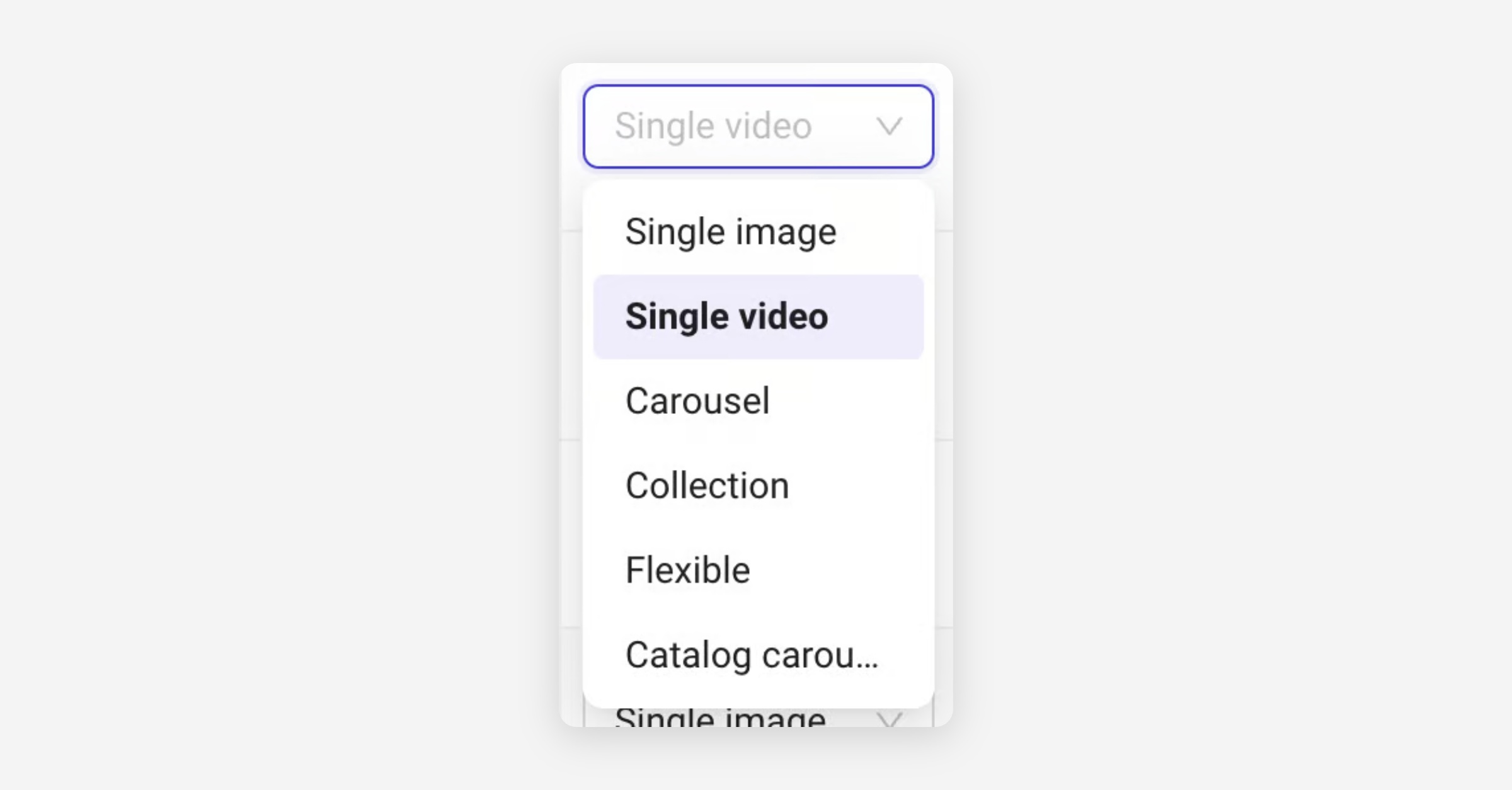
Select either Single Image, Single Video, Carousel, Flexible, Collection or Catalog Carousel.
Ad Name
Enter a unique name for the ad.
Ad Set
Select, or duplicate, an adset. Learn more here.
Assets
Click the + button in the Assets column to open the file picker for your selected storage provider
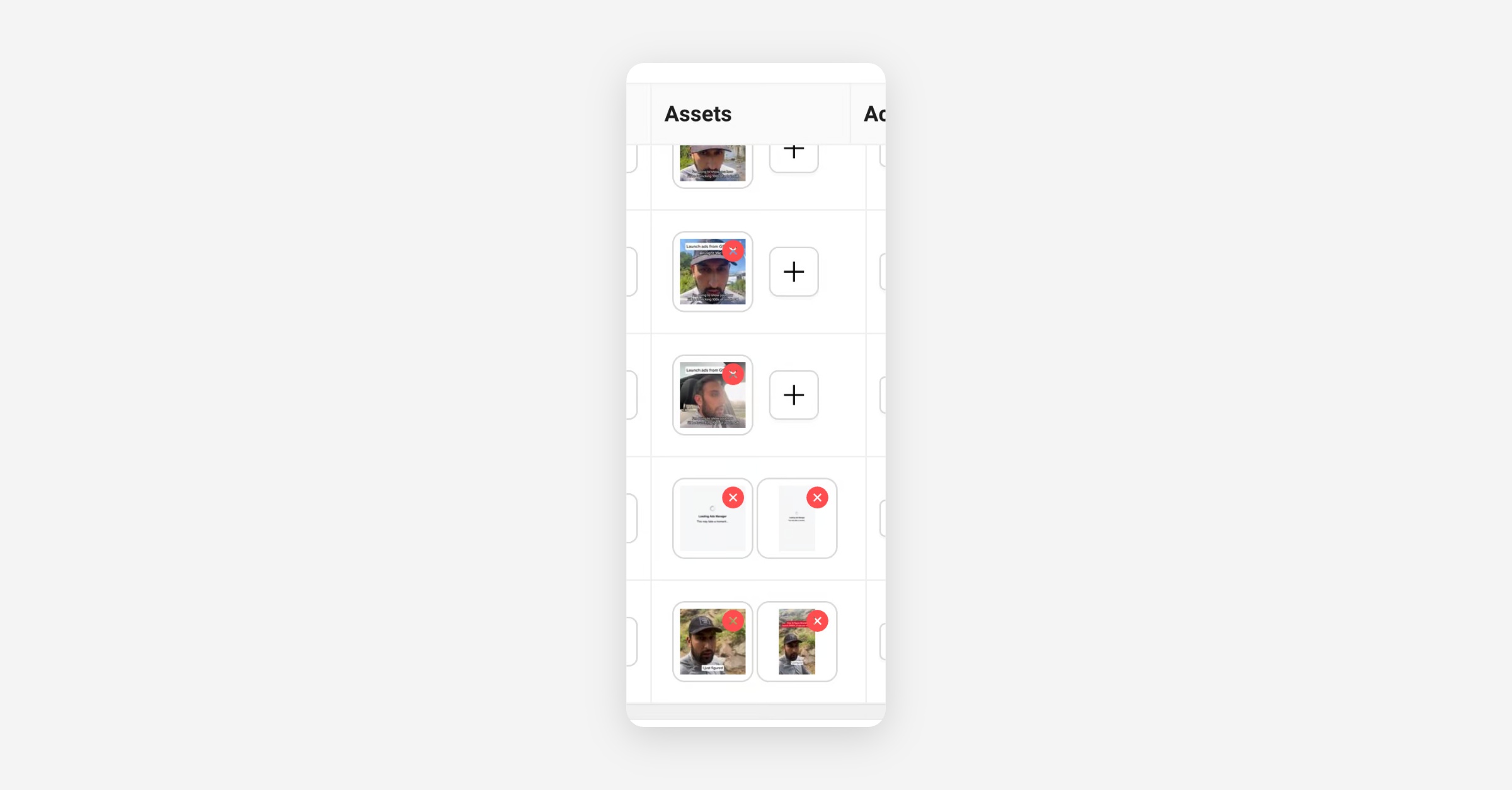
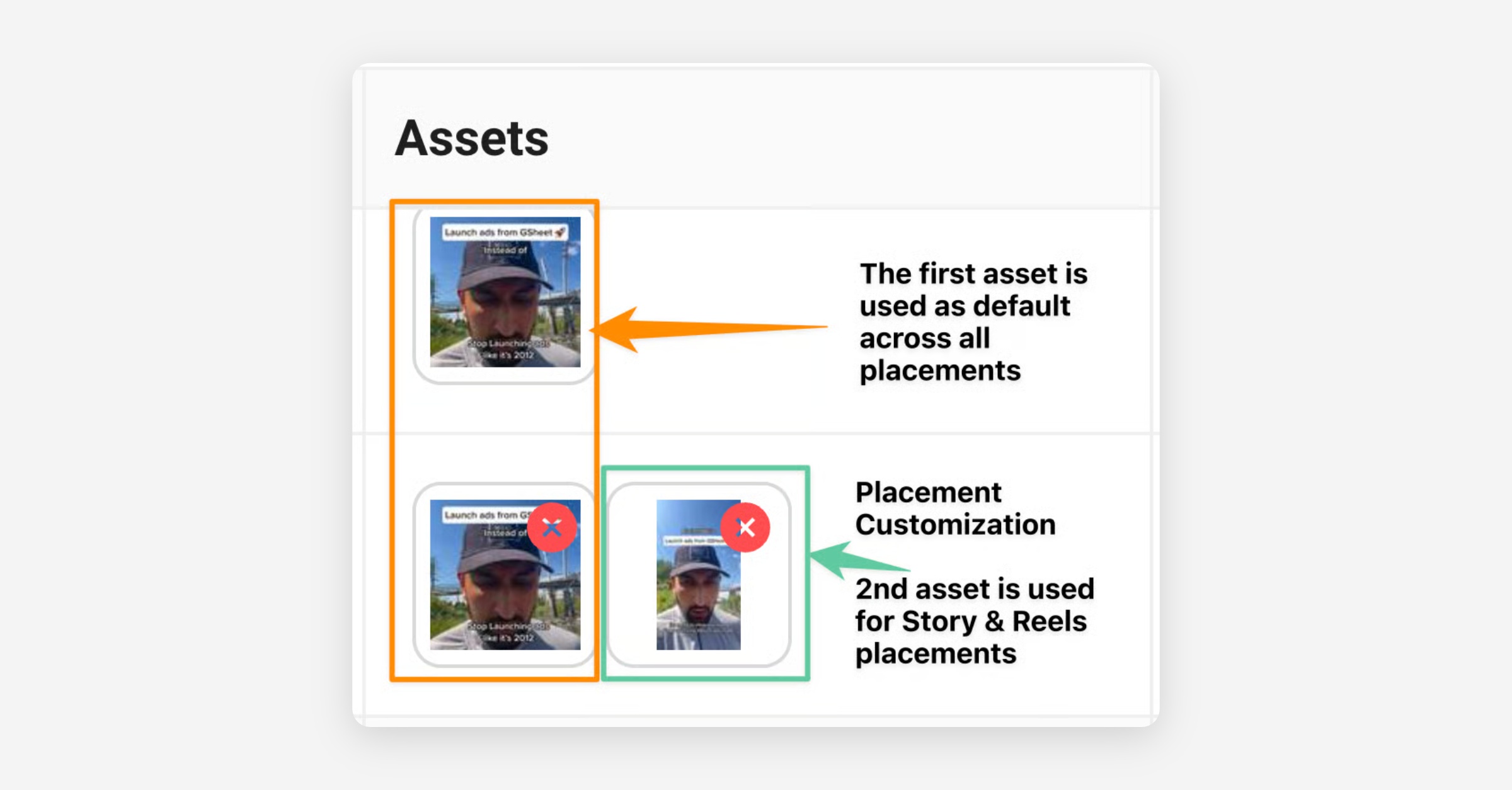
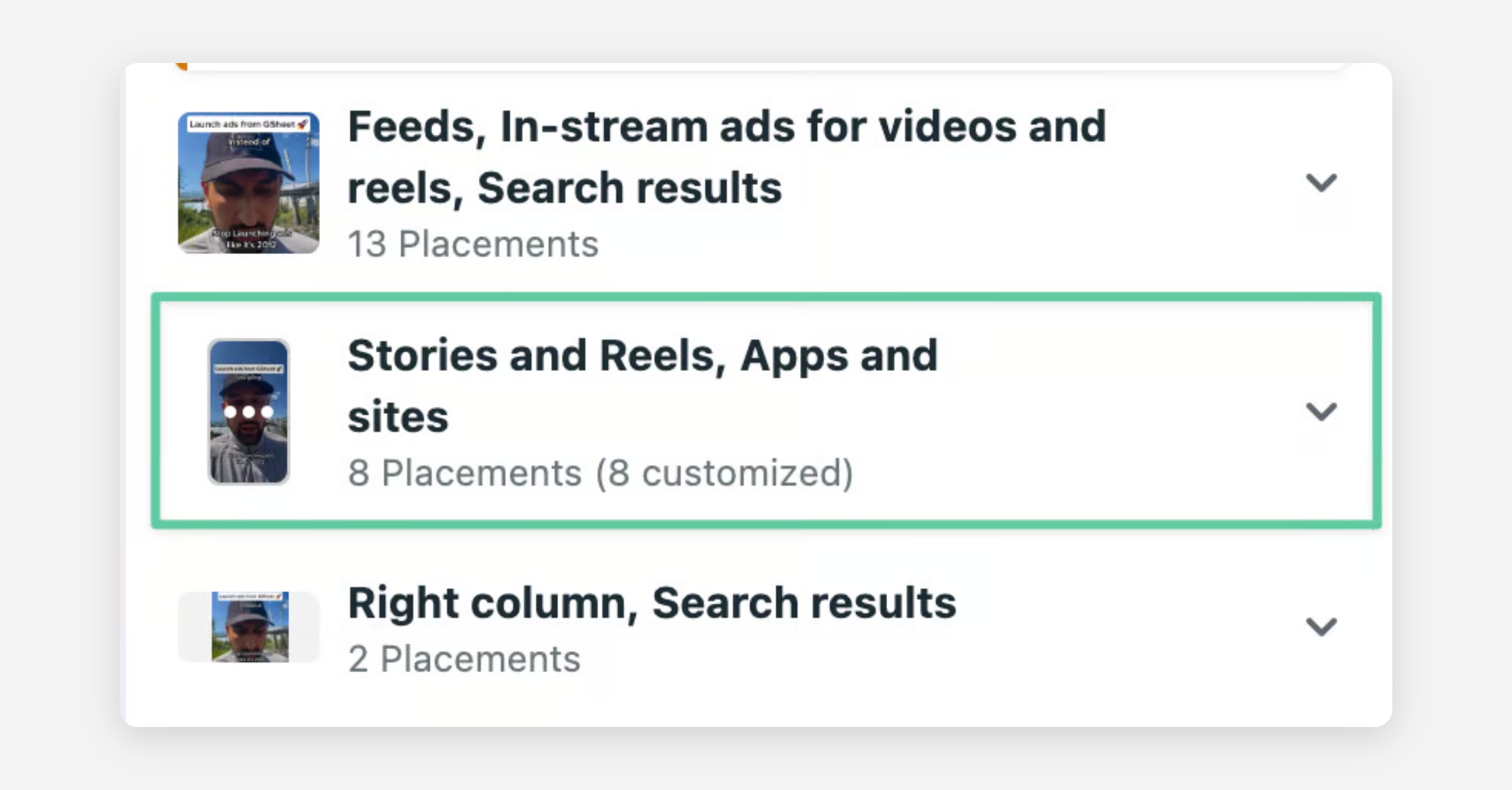
For Single image and Single video ads, the first (or only) asset will be used as the default across all placements. You may add a second asset, which will be used across all Stories and Reels placements. You may add a third asset that will be used across all horizontal placements (Right column, Search Results).
Carousel Ads:
Select up to 10 image or video assets
Placement asset customization is not possible
You can customize each carousel's headline and description by adding additional text elements
Collection Ads:
Select 1 image or video asset
Headlines
Single Image and Single Video Ads:
Enter up to 5 headlines.
Carousel Ads:
Enter no headline or one headline that will be used across all carousel cards, or one for each card.
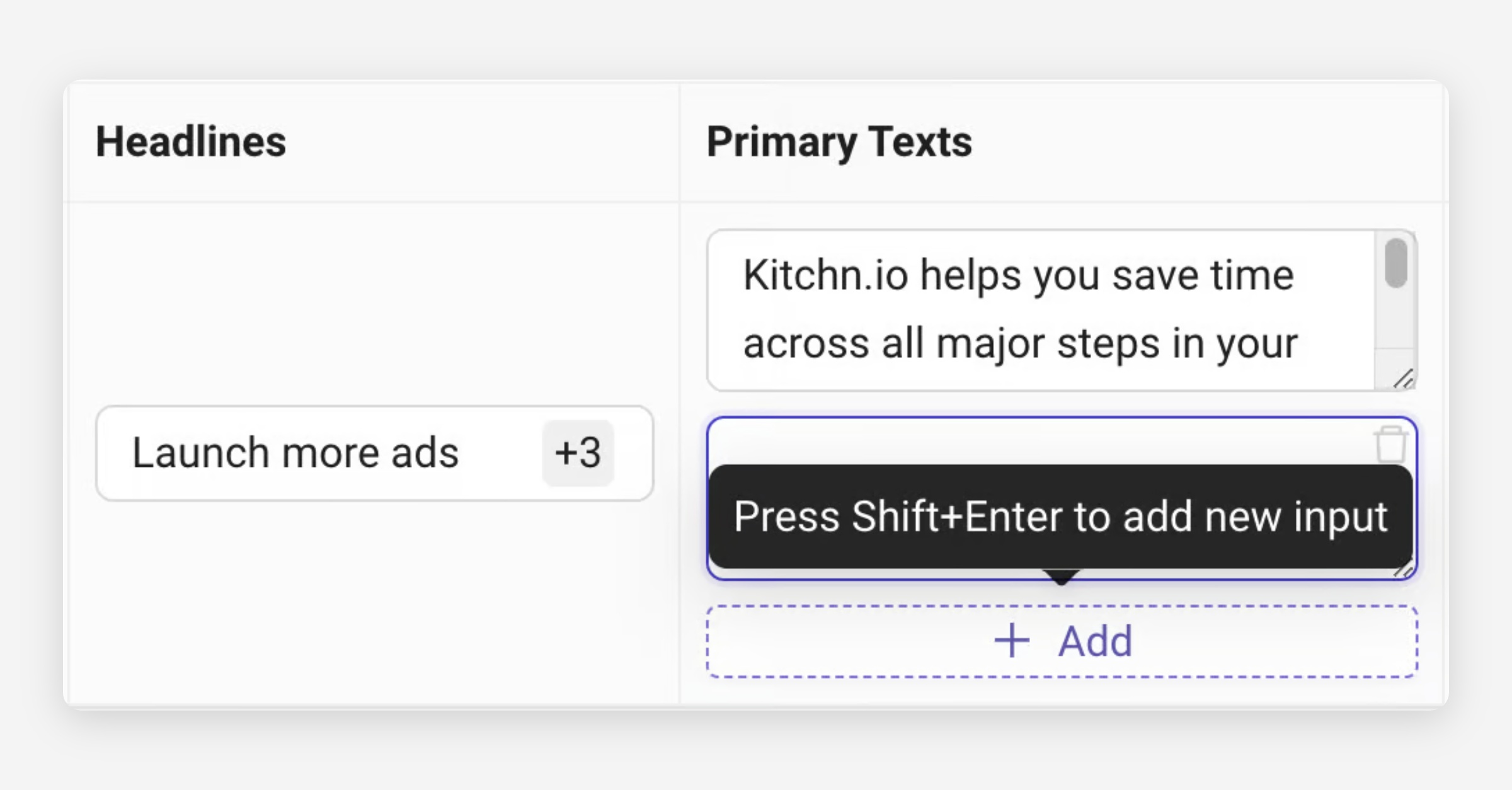
Enter up to 5 headlines, primary texts and descriptions
Collection Ads:
Exactly one headline is required.
Primary Texts
Single Image and Single Video Ads:
Enter up to 5 primary texts.
Carousel Ads:
Enter no or one primary text.
Collection Ads:
Enter no or one primary text
Descriptions
Single Image and Single Video Ads:
When using just one creative asset, enter up to 5 description. When 2 creative assets are selected, you may only enter 1 description.
Carousel Ads:
Enter no description, one description (that will be used across all carousel cards), or one for each card.
Collection Ads:
Descriptions are not supported for Collection Ads.
Destination URL
Single Image and Single Video Ads:
Enter a destination URL.
Carousel Ads:
Enter one destination URL that will be used across all carousel cards.
Collection Ads:
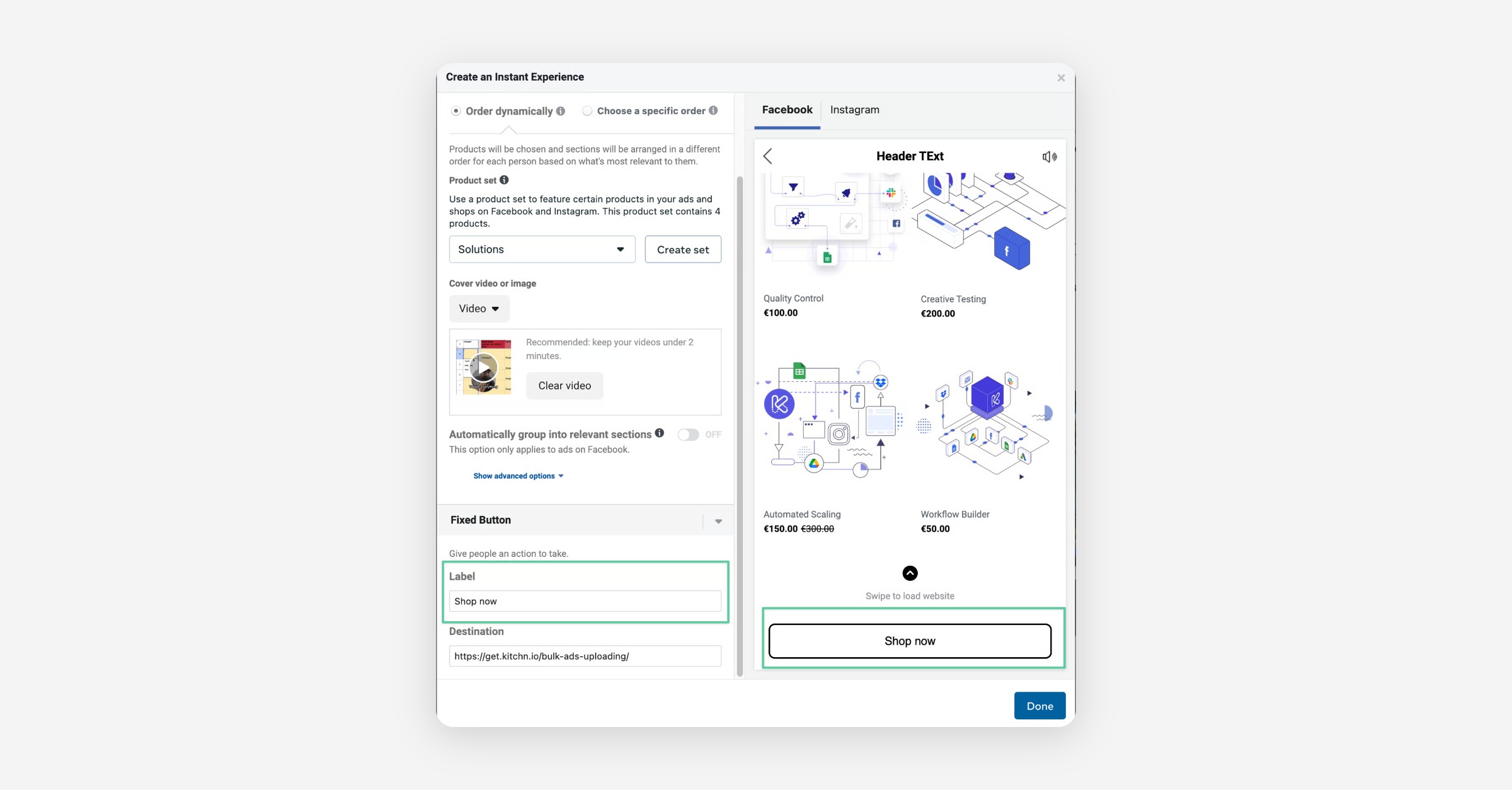
Enter a Destination URL that will be used inside of the Instant Experience as the Destination URL behind that fixed button
Display URL
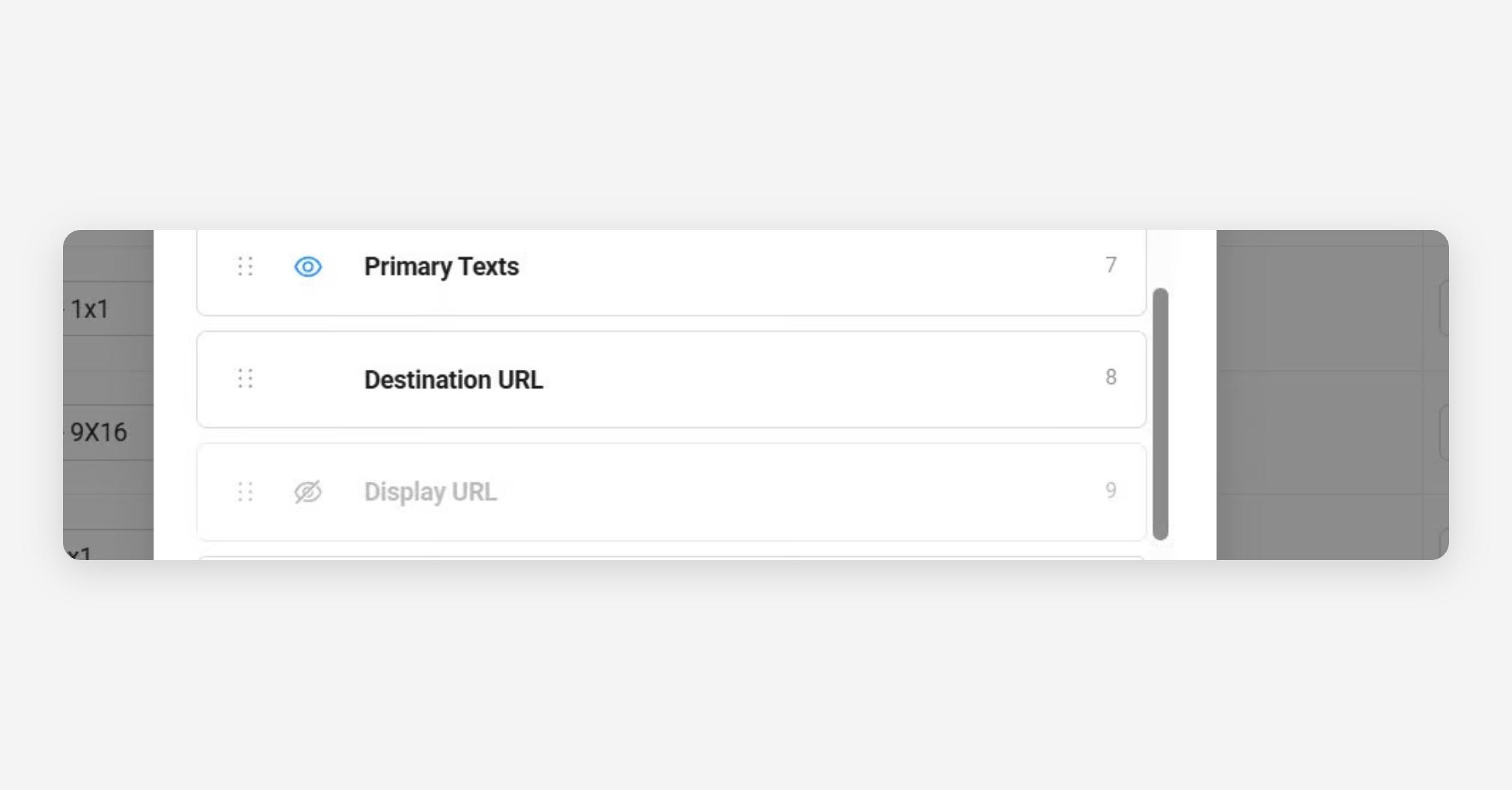
The Display URL field is an optional field for Single image, Single video and Carousel ads. If you don't need it, you can simply hide it along with other optional fields that you want to leave empty.
App Product Page ID
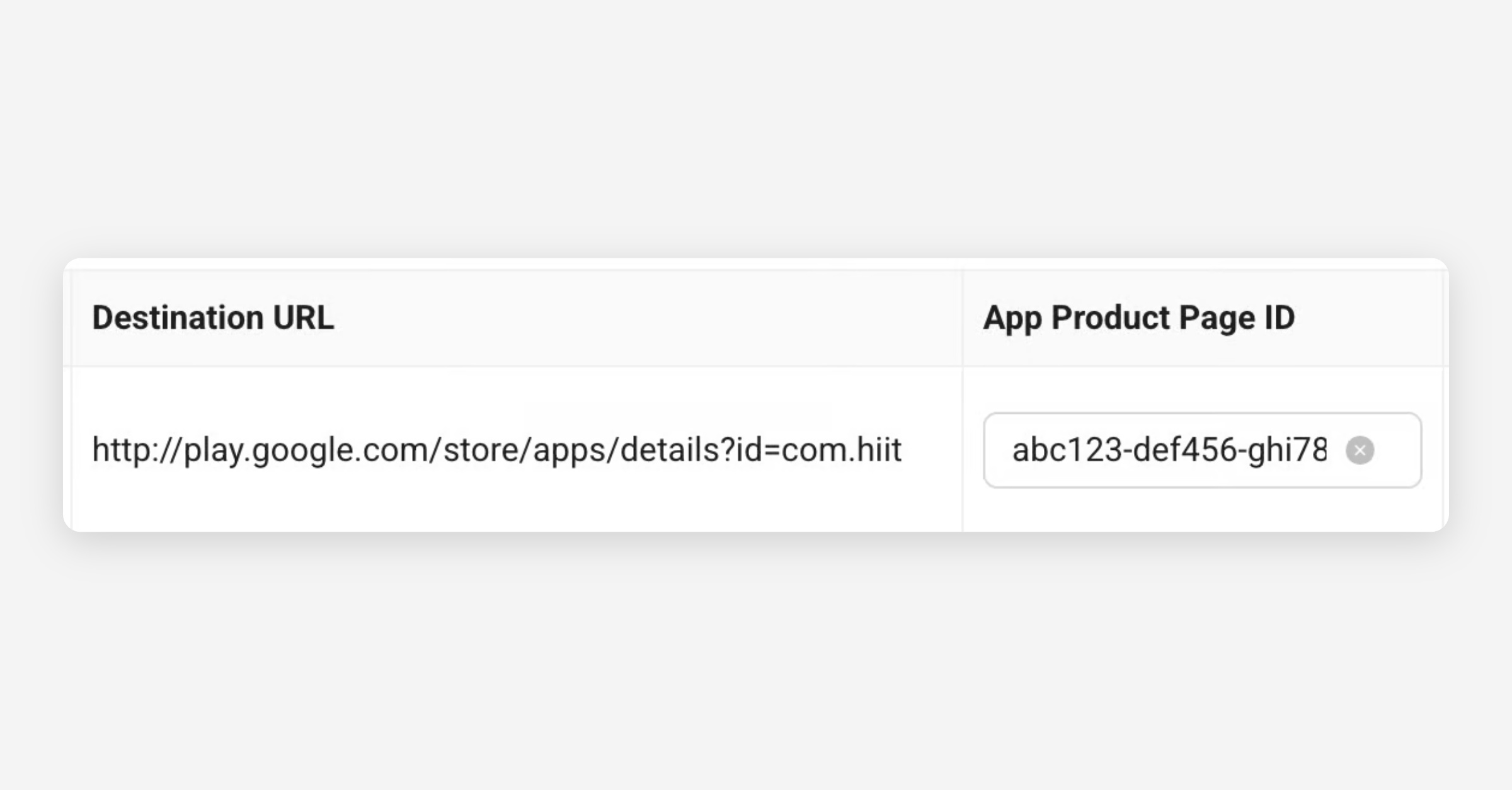
If you're a Mobile App Advertiser using Custom Product pages on the App store or Custom Store Listings on GooglePlay, you can add those in the App Product Page ID column.
Call To Action
Choose a Call To Action button type from the searchable drop-down list
For Collection Ads the CTA text will also be used in the Instant Experience as the button text.
Product Set ID
For Collection Ads, enter a valid Product Set ID from the Product catalog that you would like to promote.
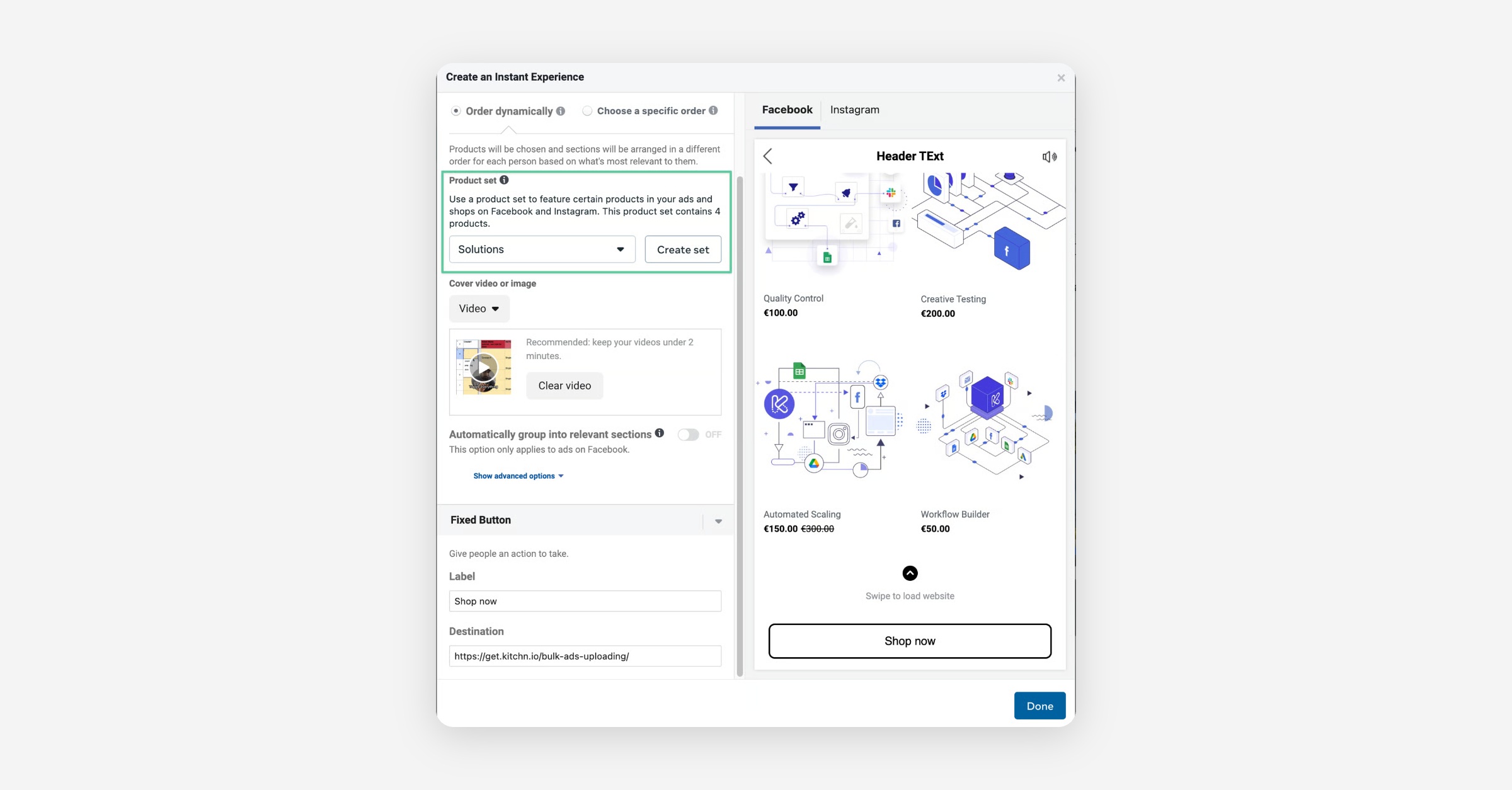
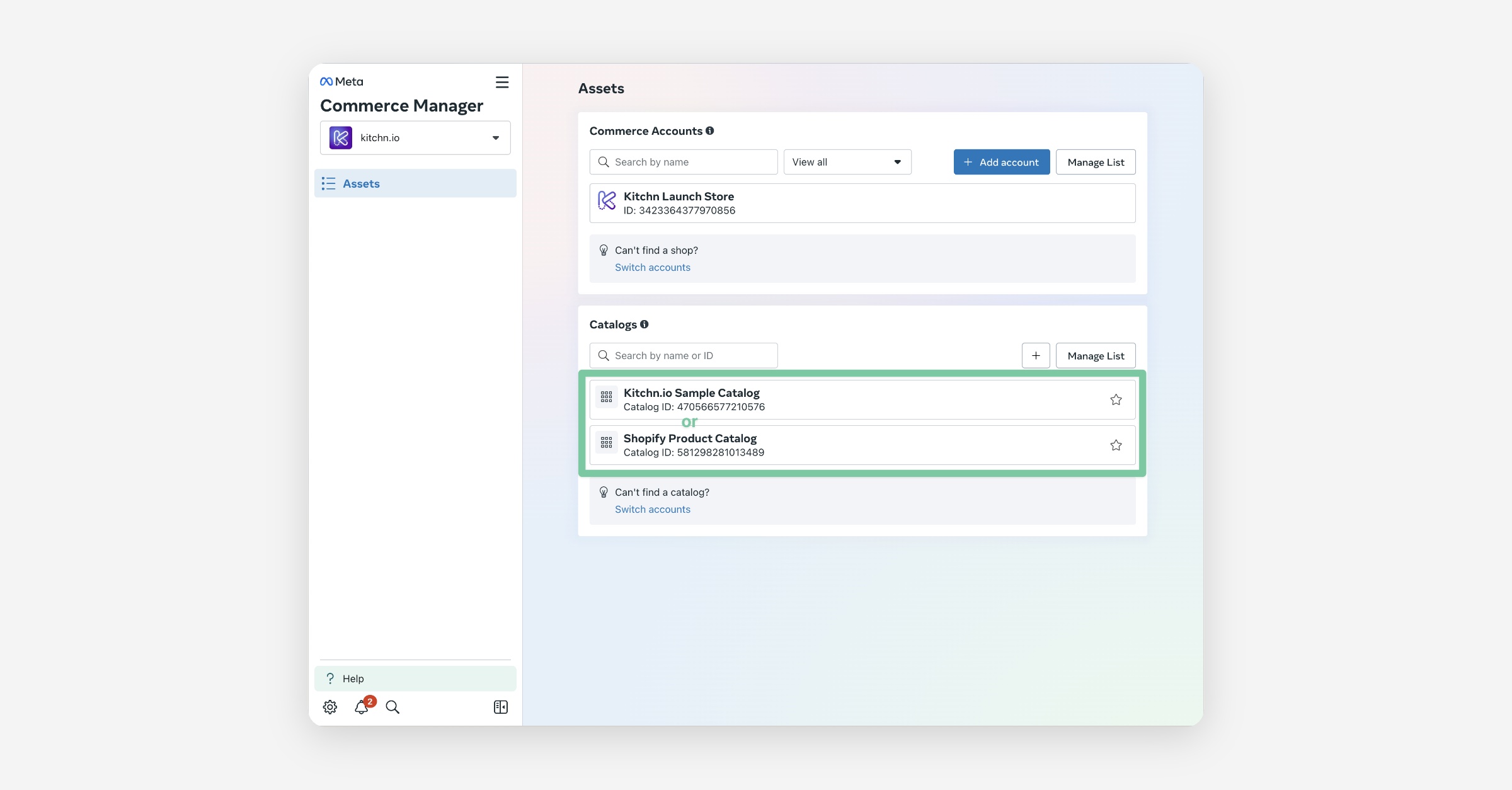
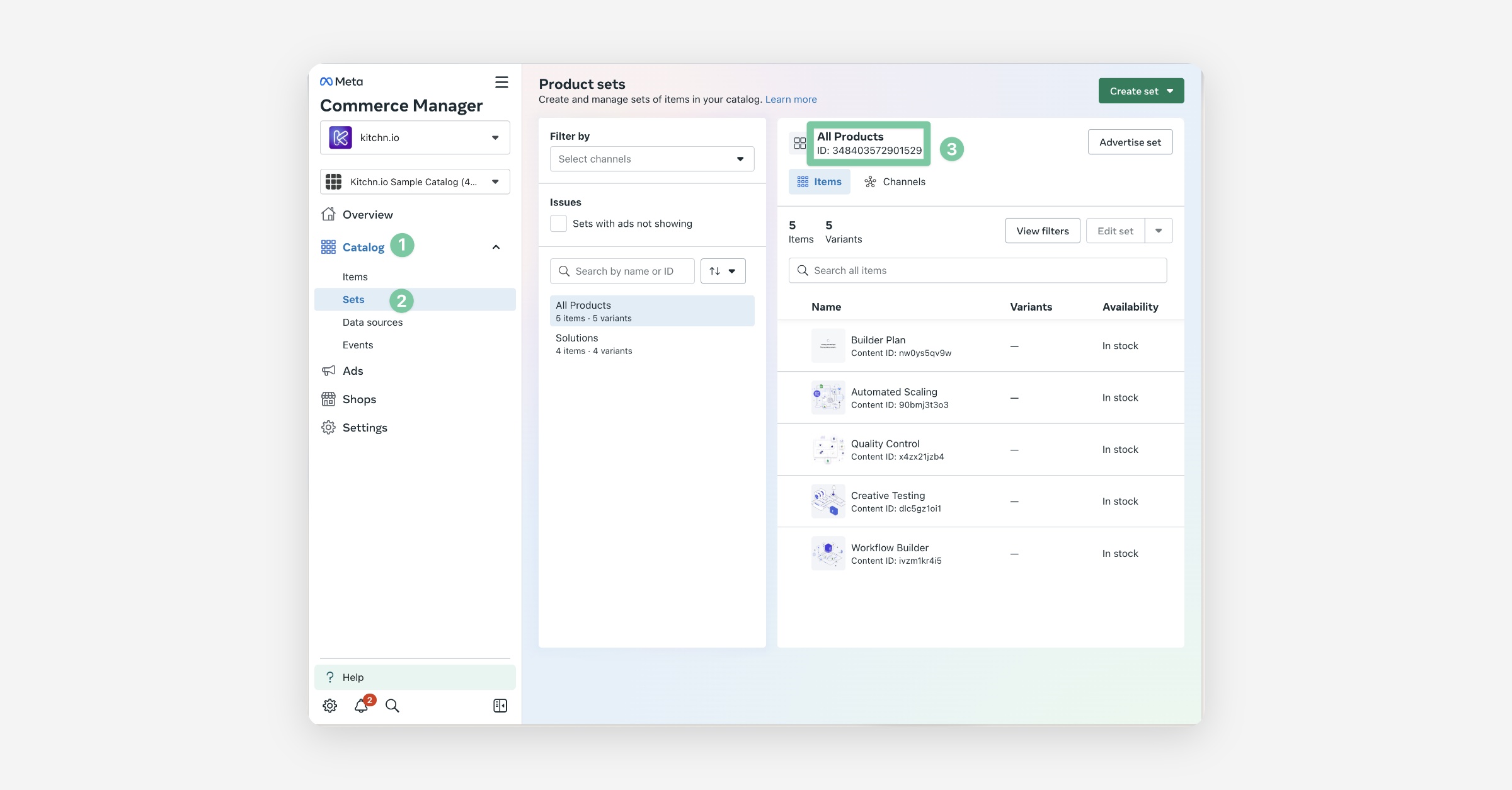
Where do I find the Product Set ID?
Choose a Product catalog connected to your business.
Then, select a Product Set and copy the ID and enter it into the Launch Sheet.
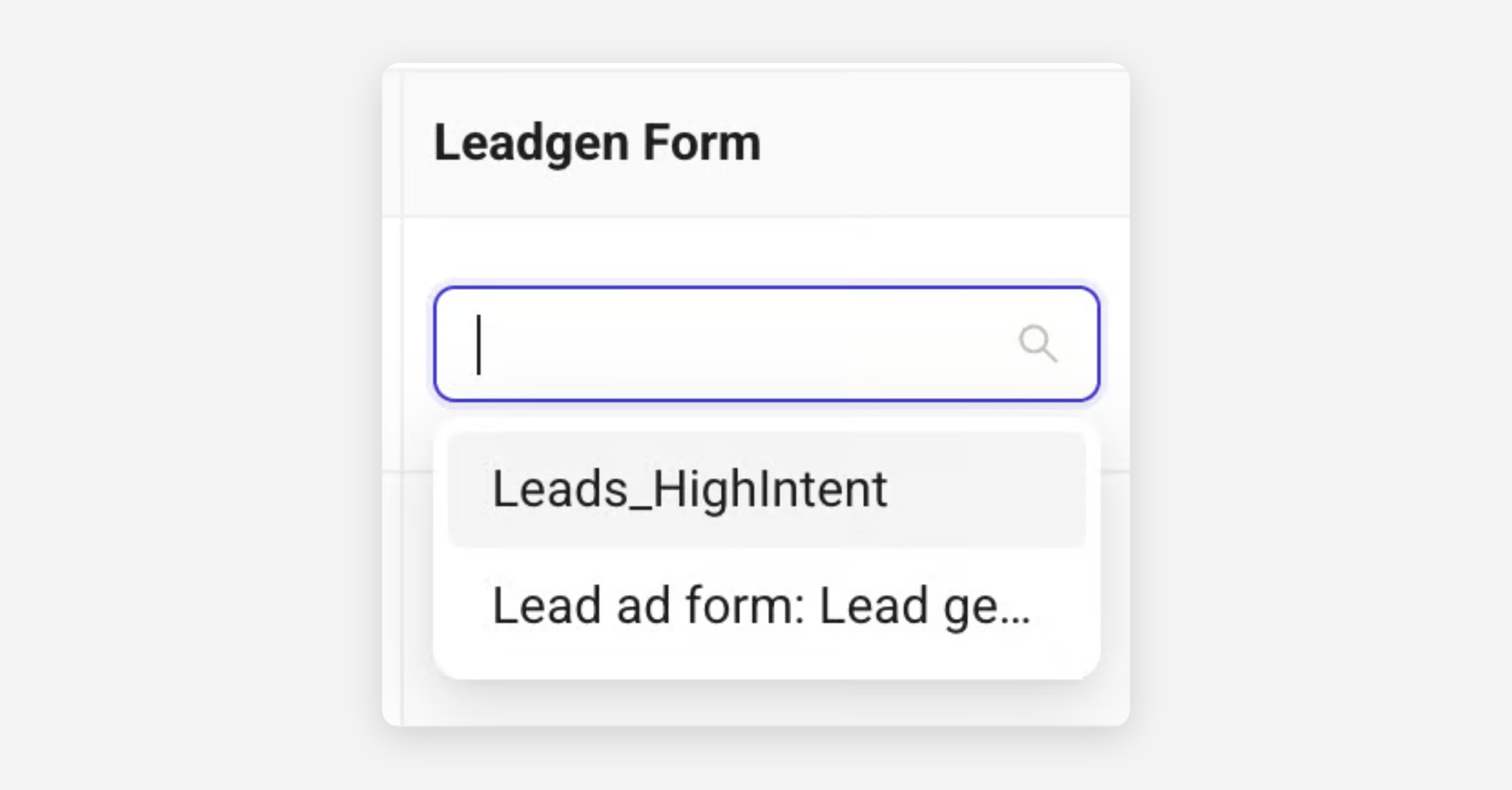
Leadgen Form
If you're a Lead Gen advertiser running Lead campaigns, you can select any of your page's Lead forms using the Leadgen Form column.
Scheduling
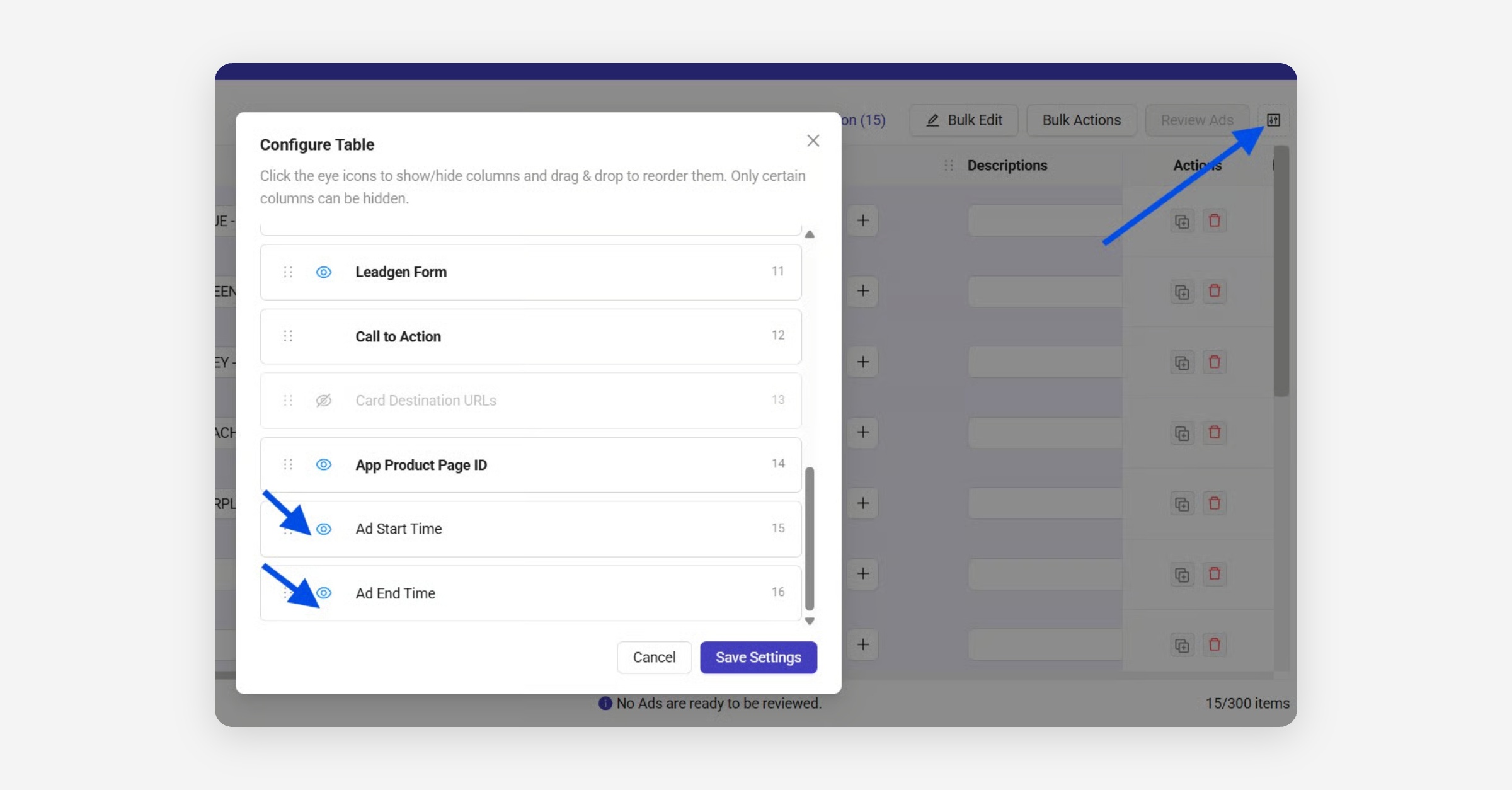
Ad-level Scheduling is possible on all new sheets. \
You can enable Start & Stop Date columns using the new Table configuration option:
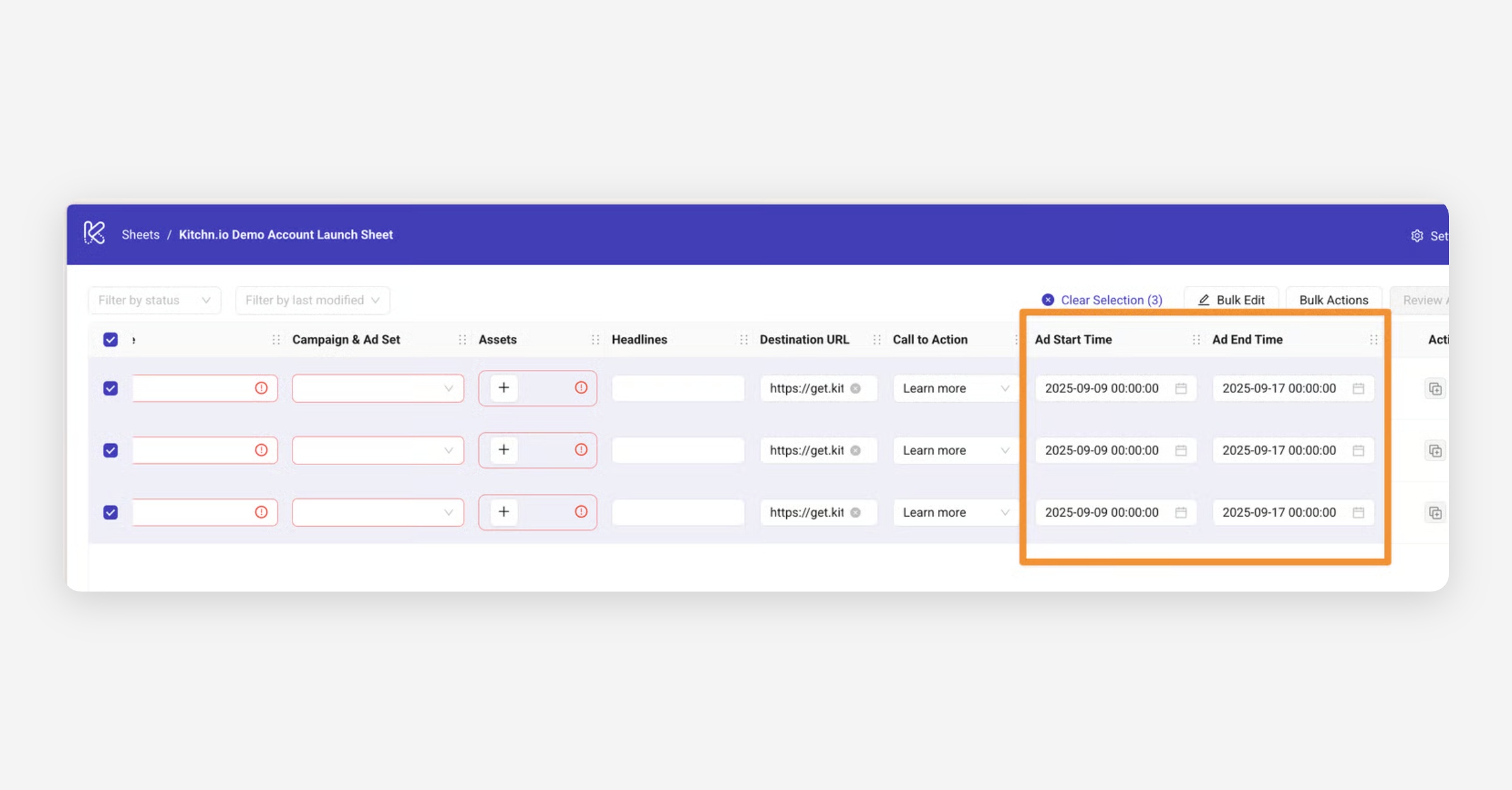
The Ad start time, and Ad end time can be set row by row, or in bulk:
Completeness: Once all mandatory fields are filled in-sheet, there should be no red arrows indicating missing information. You are then ready to launch Ads through the 'Review Ads' button, which comes live:
.png)
Was this helpful?