
Ad Templates
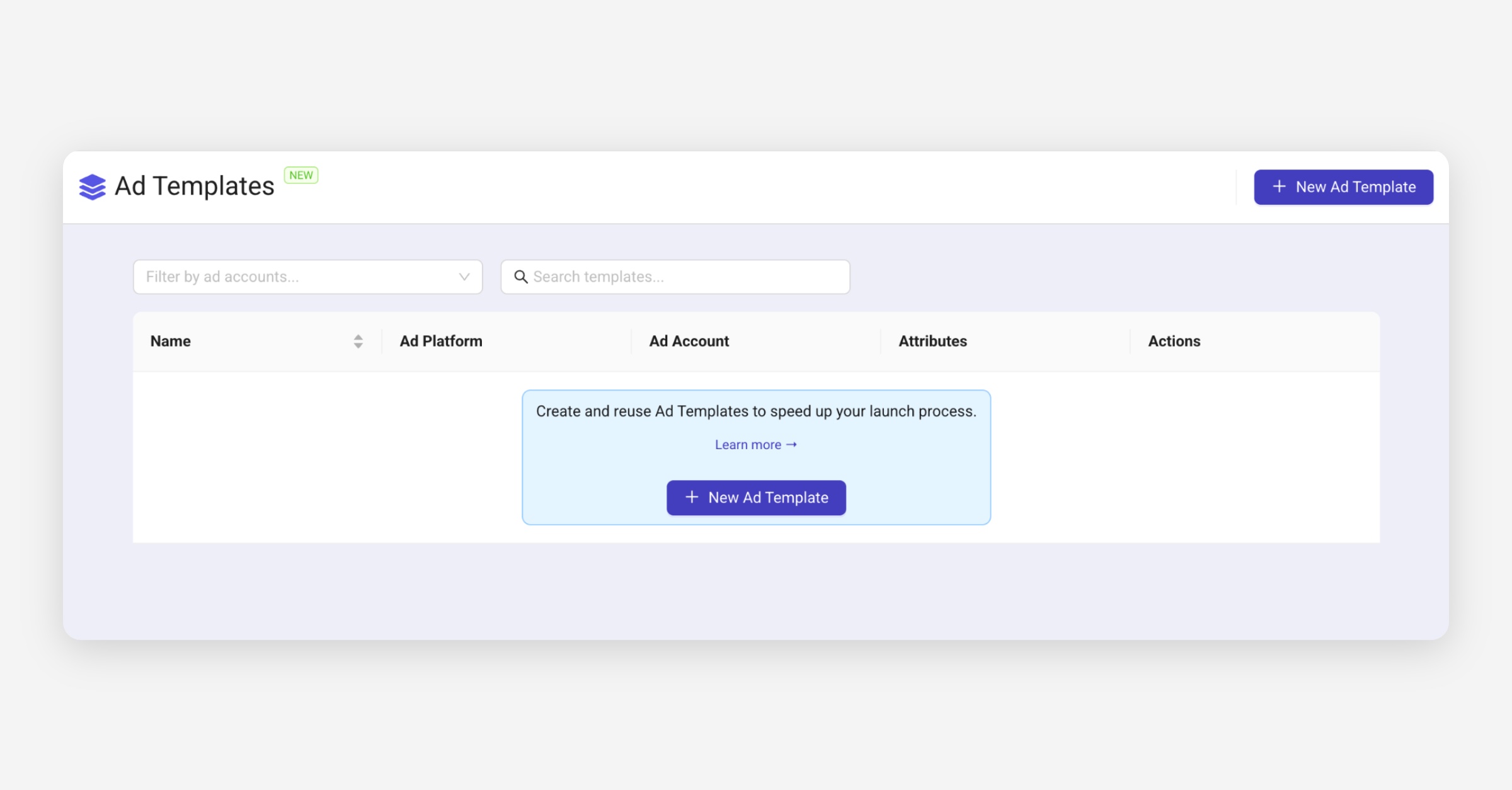
Ad Templates let you save and reuse ad components such as Primary Texts, Headlines or URLs to speed up your launch process and reduce manual errors.
Creating a New Template
Click + New Ad Template to open the creation window.
You’ll need to define:
Template Name
Ad Platform (Meta by default)
Ad Account (optional — toggle Account-specific template ON or OFF)
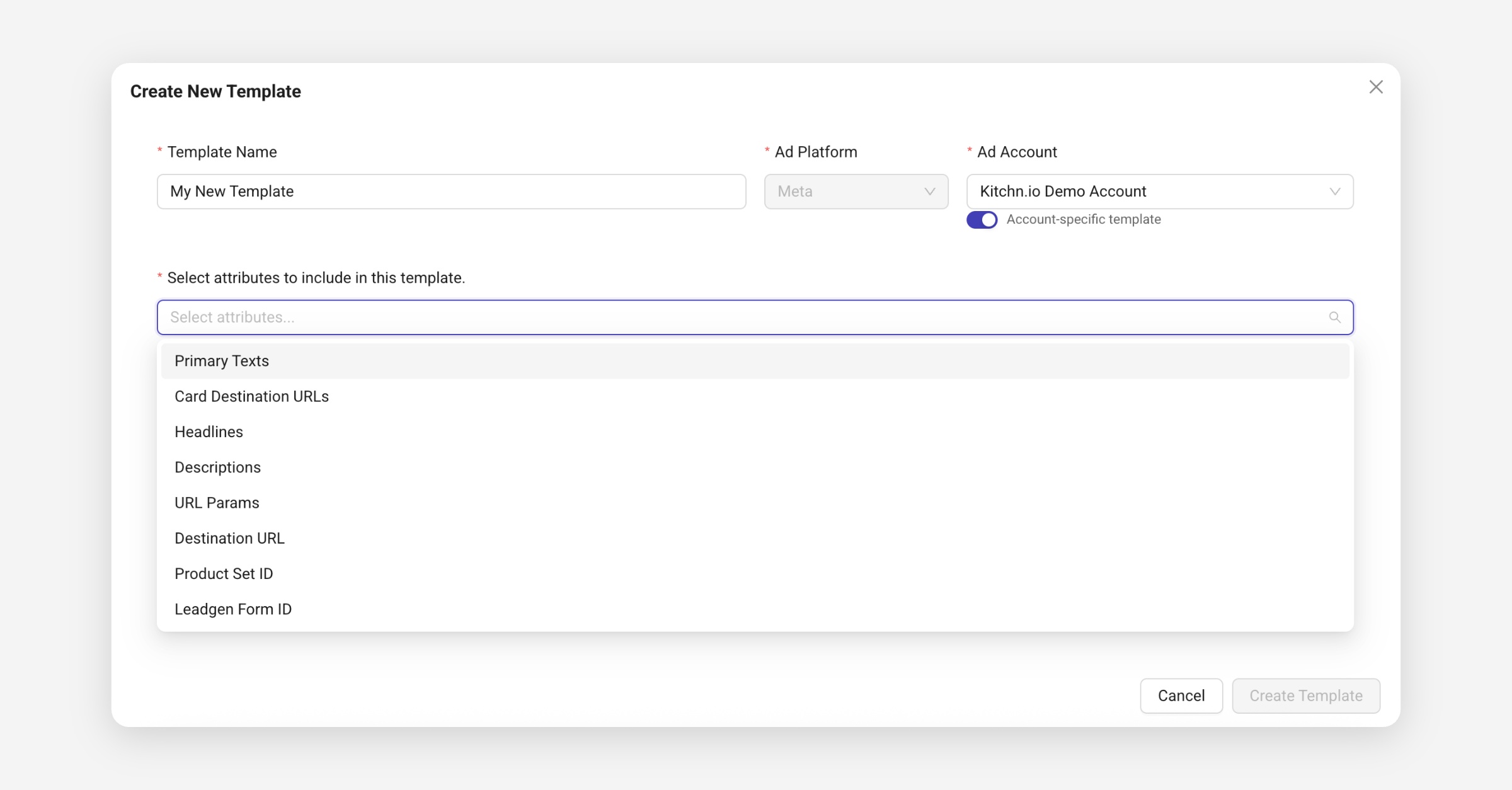
Attributes to include — select one or more from the dropdown list (15+ options available)
Why use Ad Templates?
Ad Templates are ideal for teams managing multiple brands, recurring campaigns, or A/B tests. They help standardize ad setups, reduce copy-paste mistakes, and ensure consistent messaging across launches.
Selecting Attributes
In the attributes dropdown (15+ options), you can include one or more creative elements, such as:
Primary Texts
Headlines
Descriptions
URL Params
Destination URL
Product Set ID
Leadgen Form ID
The Account-specific template toggle limits visibility to that ad account only.
Turn it off if you want to reuse the same template across multiple ad accounts.
Once attributes are selected, each section expands to let you add values (for example, multiple Primary Texts).
These will be saved and automatically reusable in future campaigns.
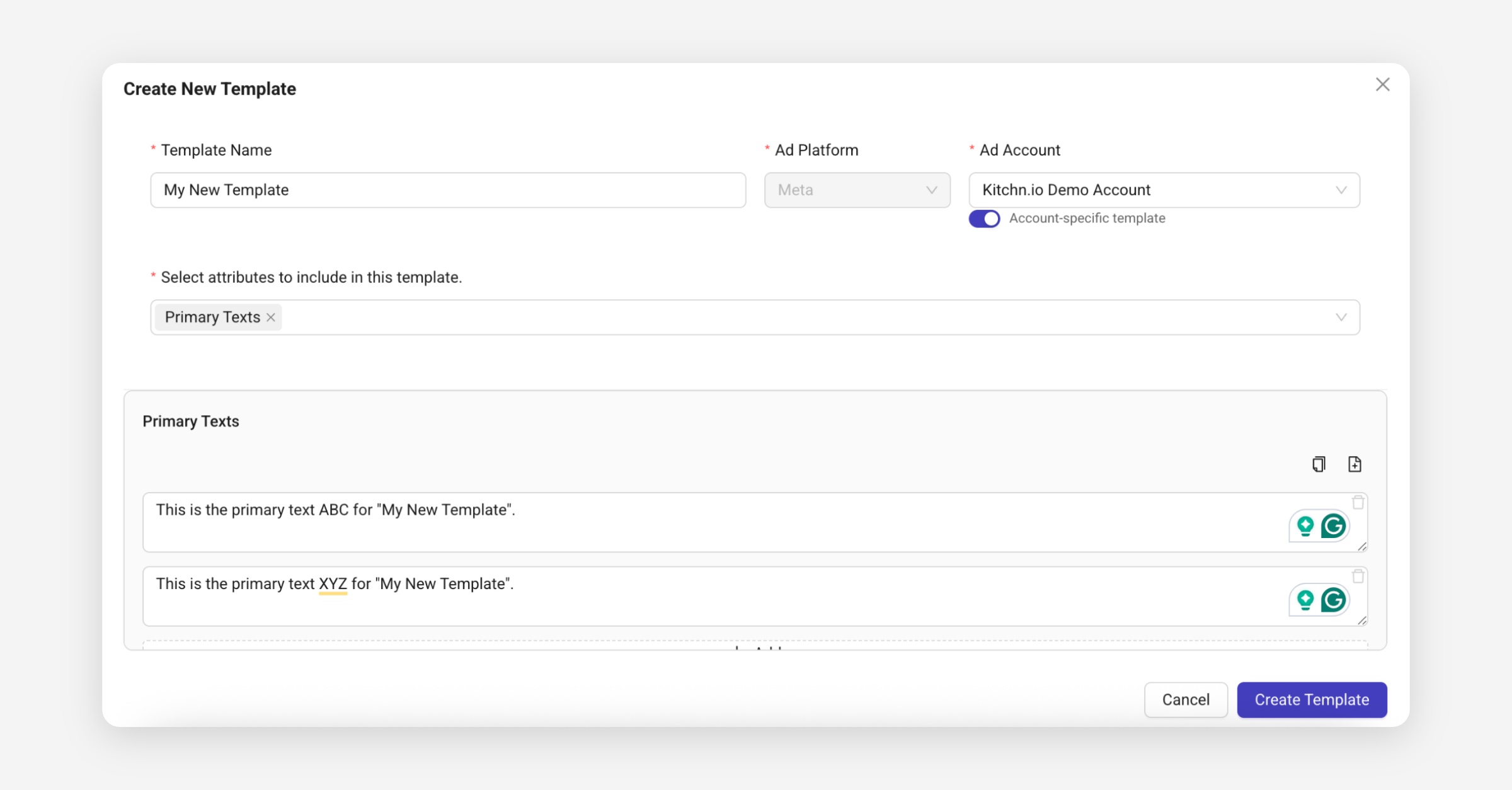
When ready, click Create Template to save.
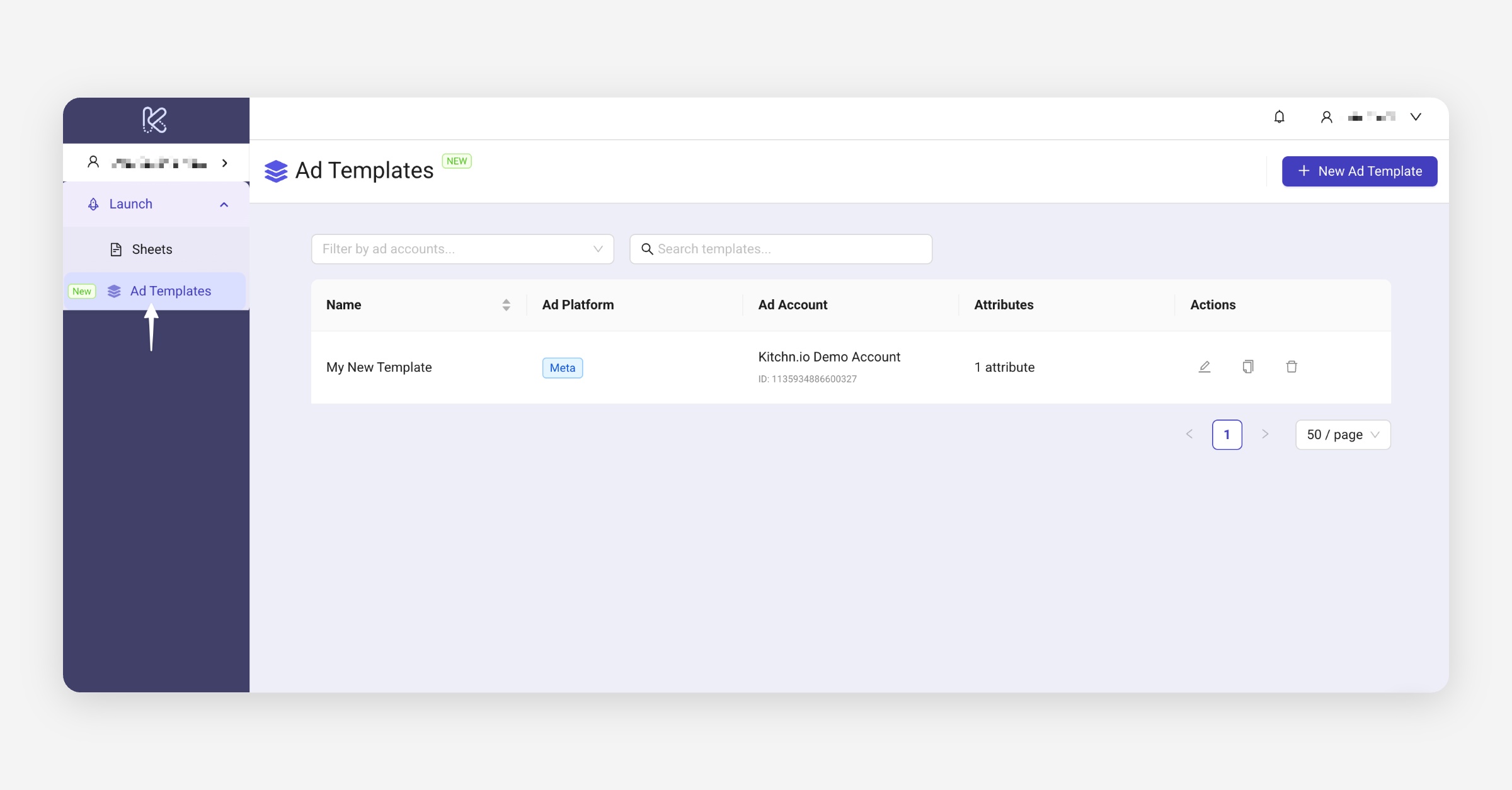
Your new template will appear in the main Ad Templates list.
Accessing and Filtering Templates
All existing templates can be found under Launch → Ad Templates in the left-hand navigation panel.
On the Ad Templates page, you can:
Filter templates by ad account
Search templates by name
Create a new template using the + New Ad Template button
You can Edit, Duplicate, or Delete any template directly from the Ad Templates list using the icons in the Actions column.
Best practices
Keep naming consistent across templates (e.g. “Black Friday 2025 Headlines”)
Review templates quarterly to remove outdated creatives
Use shared (non-account-specific) templates for global campaigns
Combine templates with the Bulk Apply action to quickly update large sheets
Creating a Template from an Existing Item
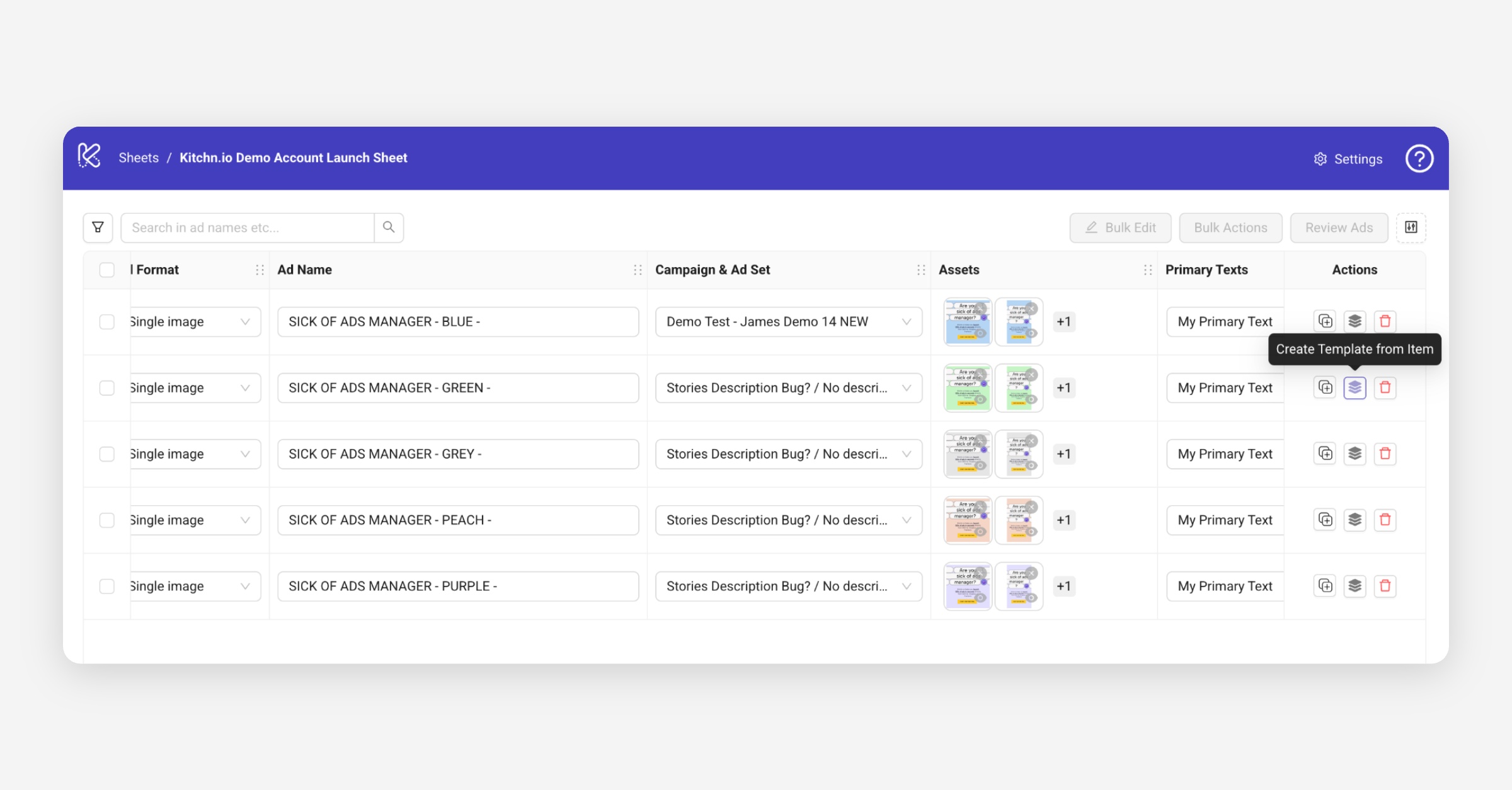
You can also create templates directly from existing ads in a Launch Sheet.
Click the Create Template from Item icon in the Actions column to save that ad’s creative fields as a new reusable template.
Applying a Template
To apply a saved template, select one or multiple ads in your sheet and go to Bulk Actions → Apply Template.
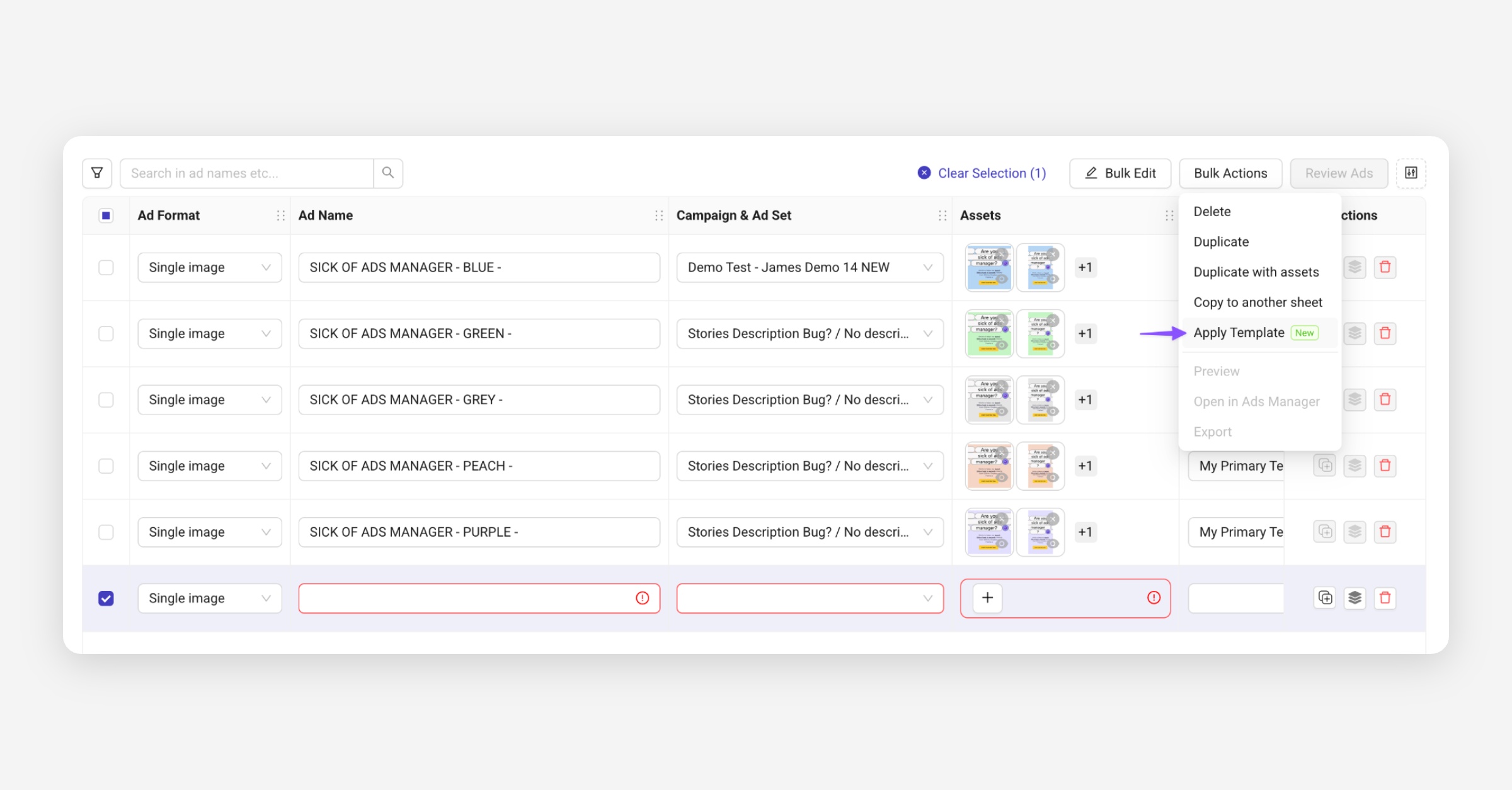
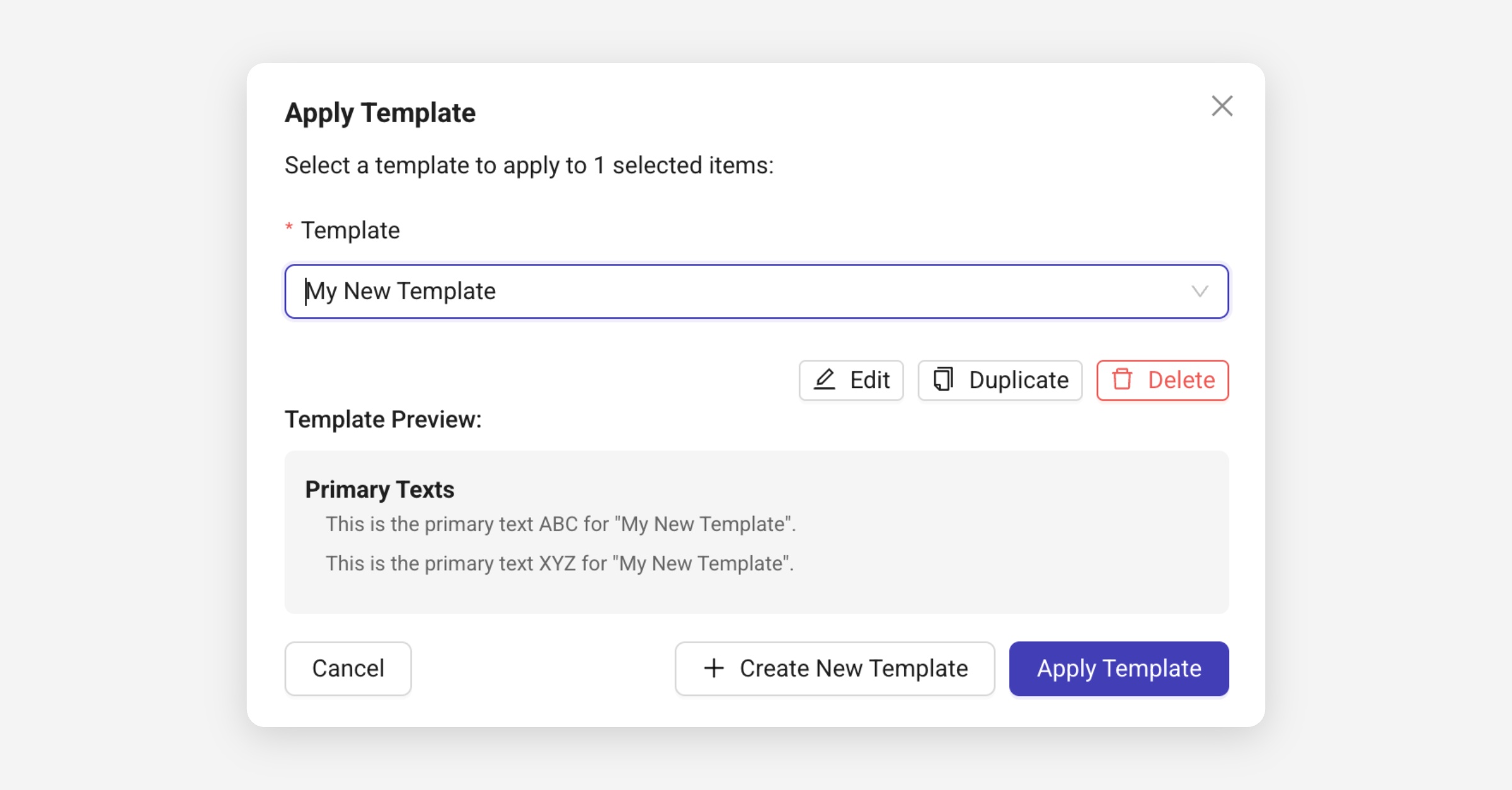
Choose a template from the dropdown.
You’ll see a Template Preview showing which attributes will be applied.
You can also Edit, Duplicate, or Delete the template directly from this window.
Was this helpful?